Air Gap Environment
An air-gapped machine is one that has never made a network connection and never will. Cold keys — pool registration keys, Constitutional Committee signing keys, any key that authorizes high-value operations — must be handled on a machine that meets this bar. If your cold key ever touches an internet-connected machine, it should be considered compromised.
You have two paths to an air-gapped environment:
cardano-airgap — Nix bootable ISO (recommended)
cardano-airgap is an IntersectMBO-maintained, Nix-built bootable ISO designed for air-gapped Cardano operations. It is already in use by many SPOs and Constitutional Committee members.
Why use it
The fundamental requirement for cold key operations is that the machine handling your keys has never touched the internet — not during setup, not during updates, not ever. Rolling this yourself (installing Ubuntu, patching it, installing Cardano tooling) means the machine is online for at least some of that time.
cardano-airgap eliminates that window entirely:
- Built with Nix: the entire system is defined declaratively and built offline. The ISO you boot has never made a network request
- Ships with all necessary Cardano tooling pre-installed (
cardano-cli, key generation utilities, etc.) - Read-only by design: no persistent state that could be contaminated between sessions
- Auditable: the full build is reproducible from the public source
Who should use it
- SPOs signing pool registration certificates, voting transactions, or any operation requiring the cold key
- Constitutional Committee members authorizing hot key credentials or voting
- Any operator handling high-value keys who needs a clean, verifiable environment
Getting started
Download the latest ISO release from the cardano-airgap releases page on a trusted, internet-connected machine.
Verify the hash of the downloaded ISO before writing it to a USB drive.
Write it to a USB drive:
# Linux / macOS
sudo dd if=cardano-airgap-*.iso of=/dev/sdX bs=4M status=progress

# Or use Balena Etcher / Raspberry Pi Imager for a GUI option
Boot the target machine from the USB drive. From the moment it boots, the machine has never been and will never be online.
Key storage: encrypt at rest
Your cold keys should never sit in plaintext on any storage medium — even one that stays offline.
When booting from an ISO (such as cardano-airgap), the boot environment is read-only — keys are not stored on the machine. Instead, keep your keys on a separate encrypted USB drive that you plug in only during signing operations and store in a physically secure location (vault or safe) when not in use.
Best practices for key storage:
- Use a dedicated encrypted USB for keys (LUKS on Linux, or an encrypted container)
- Use a passphrase that has never been typed on an internet-connected machine
- Keep multiple encrypted copies on separate USB sticks — at least one copy securely offsite
- Store copies in fireproof, physically secure locations
- Never copy keys to an unencrypted drive, even temporarily
Workflow overview
The standard cold-signing workflow:
- Online machine — build the unsigned transaction (e.g.
vote-tx.raw) - Transfer the unsigned transaction to a USB drive (no keys on this drive)
- Air-gapped machine — mount your encrypted key volume, sign the transaction, unmount
- Transfer only the signed transaction (
vote-tx.signed) back to the online machine - Online machine — submit the signed transaction
Never transfer anything from the air-gapped machine to the online machine except signed transactions and public keys.
Further reading
Manual setup — install Ubuntu on a dedicated machine
"Air gap" originally meant a computer or subnetwork was surrounded by "air" — as defined by no data cable connections in or out — so it would be isolated from other computers & networks. These days it also means there are no radio-based network connections either (WiFi, Bluetooth, etc.).
Developers & Cardano stake pool operators generally need an air gap environment in which to work with payment keys, stake pool keys and other cryptocurrency resources that offer high-value targets for hackers.
Some specialised hardware (e.g. hardware wallets) may also perform this function. If you believe you have such a device, please be certain that it offers isolation features for your stake pool or development and that you feel secure entrusting your assets to those who have implemented these features.
Otherwise, generally you need a second computer to create this air-gapped environment, and the rest of this guide is to help you do that.
If you don't have an extra computer, or want to try building a standalone Linux environment on a USB drive, skip to Option 2.
Option 1: Install your air gap environment on a standalone computer
Choose the right computer
You will get better results from an Intel PC than a Mac:
- Mac booting has peculiarities that are too complicated to generally address here: therefore the rest of this document assumes you'll be using a PC and not a Mac.
You will need this computer's whole disc:
- Any second drive should be removed if you don't know how to completely disable it in the Linux installation process.
- The modern minimum drive size of 80GB will be enough for the Linux installation and all your Cardano support files, even if you are building them from scratch.
You can use an older machine, even a very old one:
- Linux, although well supported on most new machines, is less likely to have missing device drivers on older machines: so you might do better with an older machine than a newer one.
- This suits many developers & SPOs since an old or retired extra machine, or one with damaged software which will be replaced in the installation process, will be a good candidate to devote to the single purpose of an air gap environment.
Confirm Ubuntu as installation OS, or choose differently
We choose Ubuntu here because:
- It's a common choice on servers, so if you're building a stake pool you'll have the option of copying your
cardano-clibinary from a stake pool server to the air gap machine instead of compiling it again. - The Ubuntu desktop environment & commands are arguably better documented on the Internet than any other Linux distribution. Getting help needs to be as easy as possible since you won't be able to search the Internet for help on the air gap machine itself.
The rest of these instructions will assume the choice of Ubuntu for your air gap environment OS. If installing a different variant of Linux, please remember:
- When you read the term Ubuntu or show screenshots of its installer, look for equivalents on your own chosen Linux variant.
- There may be better choices than Ubuntu now or in the future: please feel free to share your results with others in the Cardano community, perhaps contributing your findings & procedures here on the Developer Portal.
Prepare to follow Ubuntu installation instructions
Read through the standard Ubuntu installation steps here (external link): Ubuntu Tutorials > Install Ubuntu desktop
Decide in advance whether to encrypt your air gap machine's files.
When setting up the Ubuntu filesystems, you'll be given the option of creating a Volume Group so it can encrypt your entire partition contents with a variant of the AES algorithm.
Your boot and UEFI partitions might not be encrypted, depending on the type of computer you have & version of the GRUB software with your OS installer.
Therefore, as a precaution, never attach a USB drive to your air gap machine unless you've either formatted the drive or built it as installation media.
The main advantage to encrypting your air gap system:
- Someone gaining physical access to your machine, or stealing it, will be prevented from violating your address (e.g. stealing your stake pool pledge!) or stake pool (e.g. cloning your stake pool) security. 😎
The main disadvantage to encrypting it:
- If you lose your disk encryption password, or set it incorrectly to something you can't reproduce, you will effectively lose all the data on the air gap machine's disk... including any account information or keys stored there. 😖
(optional, if encrypting your partition) Choose encryption password
Suggested password requirements:
- has never been transmitted over, or stored in, cleartext on the Internet, or stored in cleartext on your computer itself (just in case your air gap is accidentally broken)
- has length & complexity enough to hash to about 2^128 possible values: this means at least 20 apparently random characters.
Begin standard Ubuntu installation (with some modifications)
As you follow the standard procedure (also linked above), stop at the points in the headings below to ensure you're installing your air gap environment correctly.
Before starting, there is no need to physically disconnect your chosen air gap machine from the Internet, or do anything to your home router to disable WiFi.
The Internet will be unconfigured and disconnected after the OS is installed & patched and a small number of initial packages are installed (including the Cardano CLI).
Follow instructions: Ubuntu Tutorials > Install Ubuntu desktop
... paying particular attention to these steps:
Wireless (if asked)
If your computer doesn't have a cabled connection, it is acceptable under our security model to add it to the WiFi network during OS installation.
- Whatever wireless key you enter will be retained on the installed system, but you will be reminded to disconnect the Internet before the end of our own procedure.
Updates and other software
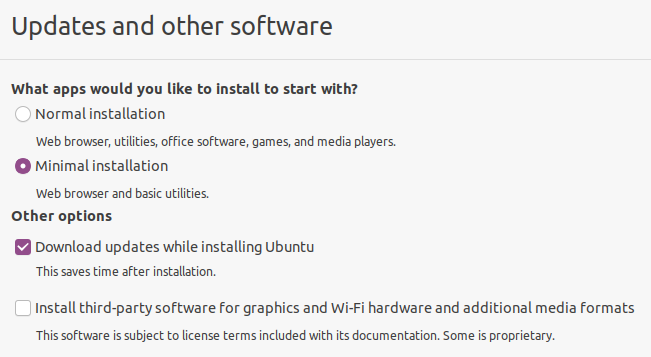
Select Minimal installation, since this is the least likely to leave you with security intrusive applications and services.
- The "Normal" installation has cloud based services and games which tend to initiate Internet connections.
- LibreOffice software is not included in the "minimal" packages but is recommended to add later (since it helps encrypt password & mnemonic backups).
Do not select (as you normally would) the option for third-party software for graphics and WiFi because of the potential for institutional spyware.
- Your graphics will be stable & high enough resolution without the performance enhancements of proprietary graphics drivers (otherwise you wouldn't see this installation screen).
- WiFi performance enhancements are likewise unnecessary because you generally won't be using WiFi, and if you need a network cable you'll be disconnecting it soon & won't be using it again.
Installation type
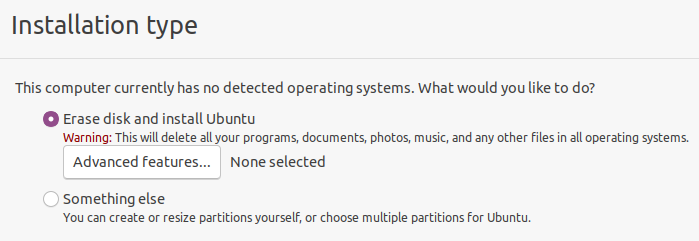
Tick Erase disk and install Ubuntu.... you've already confirmed there's nothing else that needs to be kept on this computer, and that it won't have any other operating systems or working disks.
The air gap installation should not be a part of any conventional dual-booting environment because of the inevitable security risks that would create.
Before you hit Continue, if you've chosen to encrypt your files:
(optional) Set up the hard drive for encryption
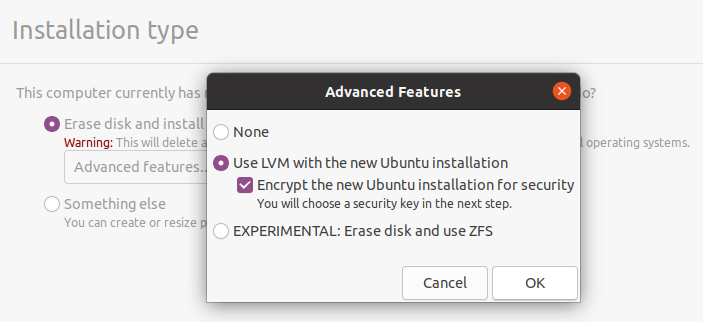
Hit the button below the Erase disk option: Advanced Features which will at first say None selected.
- Tick the feature Use LVM with the new Ubuntu installation.
- Tick the option below it: Encrypt the new Ubuntu installation for security.
Don't hit the Continue button unless you can verify it now says LVM and encryption selected under Advanced options:
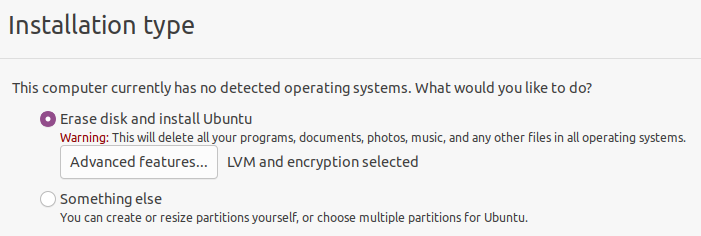
Enter the password you have prepared earlier as a volume decryption key.
- At this point you might want to check a few times that you can type this password properly: either with consistency from written notes, or from memory.
- To double check in this installation environment: move over to the left (the "dock") where you'll see a text editor icon, in which you can practice typing the password without leaving a record.
- At this point the disk is only emulated in RAM: but just to be safe, don't save this file anywhere!
Finish & reboot
Confirm the installation drive, click Install now and Continue.
- The rest of the options (user name & information, login method, etc.) can be set according to your inclination.
Ubuntu will finish installing and then you'll be prompted to remove the installation media & reboot. When rebooting, you will see two things you may never have seen before:
-
If you followed these recommendations to only install one single OS on one single disk, the boot menu you see (from GRUB) will have only one choice: Ubuntu, with the software you just installed, which will be selected by default after a few seconds whenever the system starts.
-
If you selected the encryption option for your Ubuntu system, you will need to enter the encryption password every time you start the system.
Configure Ubuntu according to security recommendations
At the screen "Welcome to Ubuntu" (which new users are currently forced to interact with), refuse everything it offers you:
- no online accounts
- no Canonical Livepatch
- no sending any system information, ever!
- no Location Services
Basic security tightening at command line
Remove packages requiring routine network access:
sudo apt remove cups
sudo apt remove unattended-upgrades
(optional) Remove Snap software subsystem.
Snap is questionable for security reasons because (like AppImage and Flatpak) it links application components with libraries that don't have to be compiled from source or security-vetted like the libraries that come with your OS itself.
Removing Snap is optional because default snaps on the Ubuntu installation media have the same security provenance as the default packages on that same release... yet snaps will also be upgraded in the next part of this procedure, and these upgraded snaps may not be subjected to the same security vetting.
To proceed with removing Snap, follow these instructions (the exact procedure changes often & these instructions may be the best maintained to date):
Update system software & all packages to current time
This will upgrade everything on your system from what you received on installation media:
sudo apt update
sudo apt upgrade
Install minimal set of packages for encrypting files/folders & text documents
(optional) Install LibreOffice
This is recommended because it will give you a means of taking password-encrypted notes that can move between your air gap and computer host environments in both directions, so you can:
- record transaction details from your home computer environment & Internet connected machines, for use in the air gap (as per Secure Workflow):
- your Cardano account balances, UTxO addresses & payment addresses
- notes from personal files & web sites about the work you will be doing within the air gap (since you won't have Internet access there);
- take notes in the air gap environment (problems, error messages) to copy back to your computer, since you can't upload them through the air gap.
LibreOffice documents saved with a password are entirely AES-encrypted with a key deriving from that password, which produces arguably the best commercially available security for files & data.
To install:
sudo apt install libreoffice
Install encrypting archiver
Whether a developer or a stake pool operator, at some point you will also need to encrypt files & folders so they can be extracted on your stake pool or application server, where LibreOffice will generally not run but you can use the installable command p7zip instead:
apt install p7zip-full p7zip-rar
Adding the extra package p7zip-rar should make saving files with encryption & compression an option in your file manager (nautilus).
Install secure deletion tools
You might need to erase any trace of an unencrypted file that could lead to loss of your funds or Cardano enterprises if it were reconstructed (since ordinary file deletions don't delete data blocks). Therefore you should install the secure-delete tools to allow you to zero-write files & their metadata or drive contents & empty disk space:
apt install secure-delete
Reboot again
This confirms that your system will start properly after having updated your system software.
Install cardano-cli
Use the standard instructions here at the Developer Portal:
Note this will build cardano-node as well as cardano-cli, but don't worry: you won't be running a node inside the air gap. 😜
Unplug from Internet FOREVER
We will leave the definition of "forever" up to your understanding of Internet threats and whether these can come from OS package repositories, etc., with this in mind:
- Software updates at 6-month intervals (e.g. after the Ubuntu "point releases") will patch security problems identified during that period: as well as install new software which may introduce new security problems.
- Any spyware or backdoor deliberately placed in the package upgrades on Ubuntu or any other version of Linux could generally just as easily have been placed on the packages used to build your installation media.
Precautions to avoid accidental connection to the Internet
BIOS settings: disable WiFi and Ethernet connection
See your computer instructions to review how to get into the BIOS, if you're interested in disabling the network adapters at a very low level so they can't accidentally (or due to a hack) be turned on in software.
- If there's no BIOS setting, WiFi can usually be disabled almost as easily on laptops by opening them up to remove, or disconnect the leads to, the WiFi card.
Put Ubuntu in Airplane mode
This will disable any Bluetooth services as well as WiFi, and shows as an Airplane on Ubuntu & other GNOME desktops as an airplane icon in the upper right corner of the screen.
With Airplane Mode always engaged, you would need the obvious Internet cable plugged in to have any network access (unlike WiFi which can often be connected by accident).
Add your computer's WiFi MAC address to the blacklist on your Internet router
Some routers maintain a list of MAC addresses which will not be given an IP address by DHCP, which isolates them from the Internet unless that network interface is configured manually.
Therefore, you can find your WiFi MAC address and add it to your router's blacklist: usually in its DNS, DHCP, or LAN settings.
Congratulations, your air gap environment is complete!
You now have a safe place you can use for your Secure Transaction Workflow.
Option 2: Install your air gap environment on a persistent USB drive
Linux veterans only! (otherwise please follow option 1)
This option may suit more demanding users, especially those:
- who travel a lot and need to maintain their Cardano operations "on the road";
- who need the convenience of booting in an air gap environment which has direct access to all their files on the host computer (as you would when booting off from an installer USB drive);
- who, instead of using a USB drive to transfer unencrypted files in & out of the air gap, would rather use that same USB drive to store these files with encryption while also providing the Cardano CLI for use on any machine supporting the same boot method;
- who want to make encrypted backups or their keys, passwords and other records from their air gap environment directly to the host computer.
If this appeals to you, and you don't mind following a more complicated and error-prone installation procedure, you might want to install the air gap environment on a bootable USB drive instead. You can then boot a computer from this drive to have access to your secure resources and cardano-cli while isolating that computer from the Internet as well as any malicious software that might be installed on that computer.
Frankenwallet — bootable USB air gap
An encrypted, air-gapped Linux bootable USB drive for Cardano (and other) secure operations
Frankenwallet is not a package, library or product, but rather a set of installation guides, security standards and templates that allow Cardano SPOs, token minters, users with funds in bare addresses, and smart contract creators to configure an ordinary USB drive to boot Linux with a level of security isolation and software prerequisites appropriate to their use case.
When one's primary computer is booted from this removable drive, the secure ("cold") configuration & workflow conventions allow operators to:
- store and work securely and flexibly with private keys
- sign transactions and securely keep records of transaction details
- keep encrypted records & backups without ever revealing keys or passwords in the insecure host environment
These instructions may be difficult or unsafe to follow unless you have experience with "dual boot" Linux installations and other custom OS & booting configurations.
Operators needing a safer path can use the cardano-airgap or Manual Setup options above.
How to use this guide
This tool has been developed by the COSD stake pool, beginning as a publication of their own operating environment when scared to death of losing their pool pledge and not being able to come by a second machine for the conventional air gap environment (see origin story: Why was the Frankenwallet developed?).
At the time of this writing, the full instructions for:
- the reasons you would want to use this tool
- how to provision & build your own Frankenwallet
- how to use the tool for stake pool operations & secure transactions
… are in the online book at this external link: The Frankenwallet. If you see any problems with this material, please submit an issue at:
- github:rphair/frankenwallet if you find an error in the material in the externally linked web site
- github:cardano-foundation/developer-portal with any updates or corrections to this page itself.
This is a one-page summary of those external instructions to help you (the operator) decide if the Frankenwallet is something you might use in your workflow according to your own level of interest & expertise.
Use cases for the Frankenwallet
➤ Anyone working with private keys & secure transaction signing, seed phrases, or other high value resources targeted by hackers (e.g., stake pool keys).
➤ Anyone wishing to work in high security with these resources without either a second computer (e.g. perpetual travellers, students, and hardware minimalists) or a hardware wallet (Frankenwallet vs. Hardware wallets)
➤ Anyone wanting or needing direct access to all their own files on their main computer in the air-gapped environment.
➤ Anyone who has wondered how you might get the same (or better) features as a hardware wallet on an easily obtainable & anonymous USB drive: including a full featured operating system with applications that can edit encrypted and richly formatted files and prepare encrypted document archives.
➤ Anyone using memory sticks to store or back up private keys who has worried about an unencrypted memory stick being lost or stolen.
➤ Anyone wanting to prepare an off-site or even a network backup of their keys, wallet seed phrases, and other cryptocurrency asset records… given that AES based encryption is considered unbreakable when properly used (i.e. never entering the passphrase on a network-connected machine).
If so universally useful, why the build instructions & not just a downloadable ISO image?
TL;DR because then all Frankenwallets would be the same, and any security flaw found in one of them might allow all of them to be exploited before a response could be mounted (see Why is there no ISO image for Frankenwallet?).
Some other use cases & limitations of this material
➤ You can use the Frankenwallet instructions to set up an Air Gap node on a full computer… but since the time of its development, this procedure has been adapted to a more appropriate page on the Dev Portal (the aforementioned Air Gap Environment).
From Frankenwallet > Miscellaneous FAQ's:
➤ Your VirtualBox or other VM software on your host computer does not isolate you from the network, even if you have the network device disabled… nor can it be ever assumed that the screen or keyboard are isolated either… so VMs are generally unsuitable to create an air gap or to implement these instructions.
➤ Ubuntu + GNOME, though heavyweight and tainted by default with proprietary software, are chosen for their universal documentation especially when it comes to issues of OS installation (without that proprietary software!) and dual booting.
➤ Read more about the Evil Maid to see what she, he, or it can & cannot do with your Frankenwallet by compromising your host computer's BIOS in a way to which all commercial computers are vulnerable.
Preparing to build the Frankenwallet
From Frankenwallet > Preparation:
Planning your communication with the host computer
You will avoid moving files around on memory sticks and transferring them over a network (impossible with Air Gap machines) because, when you boot from a USB device based operating system, the main disk on that computer is also accessible as if it were an external device.
Therefore you can plan an area on your host computer (called here the Host Folder) which the Frankenwallet will use to store any encrypted files… as well as read the raw data for the transactions that you will prepare in the air gapped environment.
Remember early & often that nothing should be stored on the host computer that is not saved an encrypted document or archive.
Procuring your hardware
Though regularly used Frankenwallets have been built on cheap & slow USB drives, to make this tool a dependable part of your workflow you should get either:
- a memory stick with a high benchmark for reading and writing speed, or
- (for best results in author's experience) a SATA SSD drive plus a SATA-to-USB adapter cable.
Users who have built dual-boot configurations before will also know you should familiarise yourself with the computer's BIOS settings in anticipation of the same type of setup.
Note there are limitations about using a Mac as host computer which stem from the different means of booting (see Frankenwallet > Hardware Requirements > What if I have a Mac?).
Choosing passwords
(from Frankenwallet passwords > low security & high security)
The low security password can be one you've already used to encrypt files on the host computer… strong enough you feel comfortable backing up files over the net.
The high security password… called the Frankenwallet password itself… should also be strictly long & complex, but should never have been used in a network environment, not even on a network connected machine… otherwise you will be defeating the purpose of using the Air Gap for any purposes of file storage or backup of files to the host computer
See each of these web links to see which of the Cardano asset & stake pool files it would typically be used to encrypt.
If you intend to use the "cool" Frankenwallet configuration (supporting light browser-based wallets) with a Chrome-based browser like Brave, you should be ready with a second high-security password used only to encrypt your most confidential data… since by default you will have to enter the user account password in the browser UI to unlock the GNOME keyring and therefore expose it in an uncertain security context.
For ease of use, you can separate the "low security" and "high security" stake pool files into two subdirectories, so they can be backed up as two separately password-encrypted archives.
Installing the OS onto the USB device
(from Frankenwallet > Host computer & media though end of Installation section)
The full instructions mainly document the installation of Ubuntu in the common "dual boot" configuration: something the target audience should feel comfortable with, and can probably improvise for themselves if also following these checklists during the installation & setup or the installed environment:
Installation notes: software
No need to disconnect from the Internet yet because you will be using it to do your first package updates & software installation.
- Purists might want to do this without Internet access at all: if feeling comfortable with the baseline OS alone (no upgrades) + getting your packages by saving them in your computer's & installing them from there.
Select the Minimal software installation (no network hungry apps & games) and plan to install the LibreOffice package later.
Don't tick third party hardware for graphics and WiFi because the proprietary vendor software provided for these devices can contain institutional spyware.
Installation notes: partitioning
When you select erase disk and install Ubuntu you will get the options under Advanced Features for:
- use LVM (the Logical Volume Manager), allowing more flexible disk usage
- select Encrypt the new Ubuntu Installation
- enter the "High Security" password you chose as the drive encryption password
Note the password you chose will be required now to boot the OS as well as decrypt the the partition it creates on any other devices (so your drive is secure when not booting).
At the next screen Erase disk and install Ubuntu, watch out that you don't accidentally select your computer's own drive… this can be very easy to do!
Setup notes: operating system
- Don't let Ubuntu link with any online accounts in its initialisation process: refuse everything like location services, "livepatch", etc.
- Disable lots of little services & settings which might leak your information (see Frankenwallet > First boot: Secure system settings)
Setup notes: packages
(details: Frankenwallet > First boot: Package installation)
- Remove all "snaps" and disable Snap.
- Remove CUPS (network printer service).
- Disable unattended upgrades.
- Upgrade the remainder of the system (
apt update; apt upgrade; apt autoremove)
Install document & security-oriented packages
secure-delete(in case you accidentally write unencrypted keys or secure data to your host computer drive)LibreOffice(supporting AES256 encrypted documents)p7zip(supporting AES256 encrypted archives)
Tune browser & turn off network access FOREVER
Lock down the browser settings, just in case, even if you think you'll never use it (Frankenwallet > Securing Firefox browser)
At this point you disable Wi-Fi and all other networks in the system settings, and go on without any future connection to the Internet in your new environment.
What to use the Frankenwallet for
From a growing body of material beginning at Frankenwallet > Usage:
Prepare and submit secure transactions
You can now follow the instructions recommended in Secure Transaction Workflow, with the following modifications:
- Create a file on your networked host computer in the Host Folder, encrypted with the Low Security password (so you feel safe backing it up over the Internet, but won't store any keys or wallet passphrases there).
- When planning your transaction, save the transaction details and any commands to cut-and-paste, in this file.
- Boot into the Frankenwallet and navigate to your Host Folder.
- Copy-paste the transaction commands and/or transaction data into the Frankenwallet command line.
- Save the resulting transaction file to your Host Folder.
- Reboot into the host computer, upload your transaction file if necessary, and submit it.
This means of implementing the Secure Transaction Workflow process is outlined specifically in Frankenwallet > Transaction flow.
Making & verifying backups of assets & keys
from Frankenwallet > Backups to host machine:
For highly secure stake pool & asset files, and any documents storing wallet key phrases or raw private key data:
- First create the file archive (with 7z) or text document (with LibreOffice) using your "high security" password.
- Then copy it to your host folder, where it can remain stored or backed up (over the network if desired) along with all your other computer's data.
- This is safe (pending the usual arguments) because you never have entered, and never will enter, the Frankenwallet (high security) password on your host computer or any other machine.
- This means you can only verify these backups on this or another Frankenwallet… never on the host computer environment itself!
For less secure stake pool & asset files, and documents with general transaction records & source data:
- First create the file archive (with 7z) or text document (with LibreOffice) using your "high security" password.
- These files you might feel comfortable verifying on your host computer.
- NOTE for less urgently secure stake pool pool files (e.g. verification keys, operational certificate counters) you might provide a second dedicated password… with "security level" between your general encryption password and the "high security" password… which you only use for the purposes of your assets & stake pool public keys.
The "cool" Frankenwallet: a sandbox for crypto wallets
from Frankenwallet > Cool environments:
Relaxing the Internet environment (meaning this device should no longer be used for cold, unencrypted key storage) allows you to use this device for node- or browser-based wallets.
Even low-bandwidth memory sticks have been tested in use with the resource intensive Daedalus node wallet, and they still work. But keep in mind that a node wallet will be considered very slow to sync… especially when your "daily driver" computer is booted from your Frankenwallet and can be used for no other purpose until booted normally again.
For browser-based wallets, the performance will be better… although the Firefox (or other browser) configuration becomes vital to avoid some institutional or extension spyware possibly compromising your keys.
In either case, you can still use the Frankenwallet to copy the wallet key phrases to an encrypted file on your host computer: so you can keep them encrypted with a password that has never been entered on your host machine.
Also keep in mind your security isolation can never be considered complete once you've allowed Internet connection from this "cool" environment… though this "sandbox" is still better than the complete exposure you'd have by running a node or browser based wallet on your network-connected, daily-use machine.